
Managing Access to 365TUNE
Learn how to securely manage user access to the 365TUNE app. This step-by-step guide covers the process for an Administrators to grant app access, assign roles, and control permissions
Managing Access to 365TUNE
Initial Setup and Default Administrator
Onboarding Process
During the initial onboarding of 365TUNE, a Microsoft Entra ID Global Administrator must grant consent to the application. This consent process:
- Establishes the connection between your Entra ID tenant and 365TUNE
- The person who initially Grant Consent (the global administrator) for the application becomes the Default Administrator in 365TUNE
- This Default Administrator receives full administrative privileges within the platform
The key distinction is that:
- The Global Administrator grants the necessary permissions/consent for the application to integrate with the tenant, and becomes the Default Administrator in 365TUNE
- The person who signs up first (which could be the same Global Admin or a different user), needs to be invited to the platform by the Default administrator after the initial onboarding.
The Default Administrator has complete control over the 365TUNE platform and is responsible for Appointing additional administrators as needed. Global Administrators (except the one granted permissions) will not have access to the platform by default.
How to Invite Users and Manage Access
365TUNE allows administrators to invite users, assign roles, and control access to individual Microsoft 365 tenants.
When inviting a user, the administrator selects the tenant the user should have access to and assigns an appropriate role. The invited user can then sign in with their Microsoft work account and access only the selected tenant's information, based on their assigned permissions.
Step 1: Open Users and Roles
- Sign in to the 365TUNE platform using the default administrator or assigned administrator role.
- Navigate to Settings → Users and Roles.
- The page displays existing users, their assigned roles, and the tenants they belong to.
From this page, administrators can review existing access and invite additional users.
Step 2: Select and Invite a User
- Select the Microsoft 365 tenant to which you want to grant access.
- Click Invite User.
- Enter the email address of the user you want to invite. (Note: Guest users are now allowed to be invited)
- Select the appropriate role based on the access the user requires.
- Submit the invitation.
Important: Users invited to a specific tenant can access only that tenant's information when they sign in. They will not have access to other connected tenants.
Inviting Users to a Non-Default Tenant
When inviting a user to a non-default tenant, administrators can assign any of the supported roles except Admin.
This allows administrators to provide access to reporting and approval functions without granting full platform administration privileges.
Step 3: Choose the Appropriate User Role
365TUNE provides the following predefined roles to control what users can view and manage.
| Role | Permissions |
|---|---|
| Admin | Full platform control, including user management, settings, billing, and access to all reports. |
| All Report Access User | Read-only access to all technical and financial reports. Cannot modify configurations or perform management actions. |
| IT Help Desk User | Access to technical reports and user activity. Cannot access financial reports or cost information. |
| Financial Analyst Users | Access to financial reports, licensing costs, and budget information. Cannot access technical details or audit logs. |
| Workflow Approver | Can approve or reject offboarding-policy actions for matched users. Does not provide access to reporting or other platform features. |
About the Workflow Approver Role
The Workflow Approver role is designed specifically for governance approval workflows.
- It is automatically assigned to users who have one or more direct reports (managers).
- Tenant administrators can manually assign the role to HR personnel or other designated approvers.
- Users with this role can review and approve or reject applicable offboarding-policy actions.
- The role has no feature mappings and does not independently grant access to reports, settings, or administrative functions.
Note: The Admin role is not available when inviting users to a non-default tenant.
Step 4: User Accepts the Invitation
After the administrator submits the invitation, the user receives an email from 365TUNE.
The invited user should:
- Open the 365TUNE invitation email.
- Click Accept Invitation.
- Sign in using their Microsoft work account.
- Access the 365TUNE platform using their assigned permissions.
Once signed in, the user can view the information available to their role for the tenant they were invited to.
The user does not receive access to other tenants simply because those tenants are connected to the same 365TUNE platform.
Creating Custom Roles
If the predefined roles do not meet your organization's requirements, administrators can create custom roles with permissions tailored to specific responsibilities.
How to Create a Custom Role
- Sign in to 365TUNE as an administrator.
- Navigate to Settings → Roles & Permissions.
- Click Create Role.
- Define the custom role and select the required permissions.
- Save the role.
The custom role can then be assigned to users when granting access, subject to the permissions available for the selected tenant.
Custom roles are useful when users require access to specific areas of the platform without receiving the broader permissions included in the predefined roles.
Frequently Asked Questions
Can an invited user access all connected Microsoft 365 tenants?
No. Users invited to a specific tenant can access only that tenant's information, according to their assigned role. Access to another tenant must be granted separately.
Can I assign the Admin role to a user in a non-default tenant?
No. The Admin role is not available for invitations to non-default tenants. Administrators can assign another supported role based on the user's responsibilities.
Does a Financial Analyst have access to technical or security reports?
No. The Financial Analyst Users role provides access to cost reports and budget information, but not technical details or audit logs.
Can an IT Help Desk User view license costs?
No. IT Help Desk Users can view technical reports and user activity but cannot access financial information or cost reports.
Do managers need to be manually assigned the Workflow Approver role?
No. The Workflow Approver role is automatically assigned to users with one or more direct reports. Tenant administrators can also manually assign the role to HR users.
Can administrators create roles with custom permissions?
Yes. Administrators can create custom roles under Settings → Roles & Permissions → Create Role.
What Happens If a User Has No Role?
If a user attempts to access the 365Tune app without a role assigned, they will see the following error message:
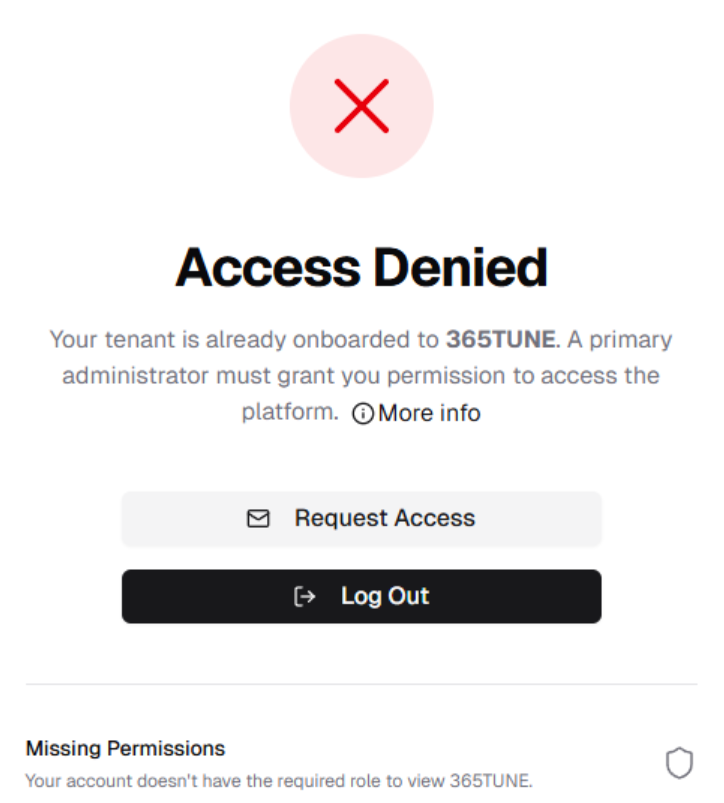
In such cases, the user must reach out to an Administrator and request role-based access via the steps above.
If you're unsure which role to assign or encounter issues, contact the 365Tune support team at [email protected].
Summary
365TUNE uses tenant-specific access and role-based permissions to ensure users can access the information required for their responsibilities.
Administrators can invite users from Settings → Users and Roles, assign predefined or custom roles, and control access to individual Microsoft 365 tenants.
Users accept their invitations and sign in securely using their Microsoft work accounts.
Updated 8 days ago